The most reliable way to coordinate a family is to turn your calendar into a shared operating system: one source of truth, clear rules, and a weekly rhythm. Below is a practical, copy-and-use example you can implement in a single weekend.
Why Calendar Optimization Matters for Families
Family schedules break down when events live in multiple places (texts, school emails, sticky notes, different apps) or when details are missing (who drives, what to bring, exact location).
Calendar management best practices like time-blocking, using reminders, and maintaining consistent routines help reduce missed commitments and last-minute stress. [web:3]
Set Up a “Family Calendar System” (30–45 Minutes)
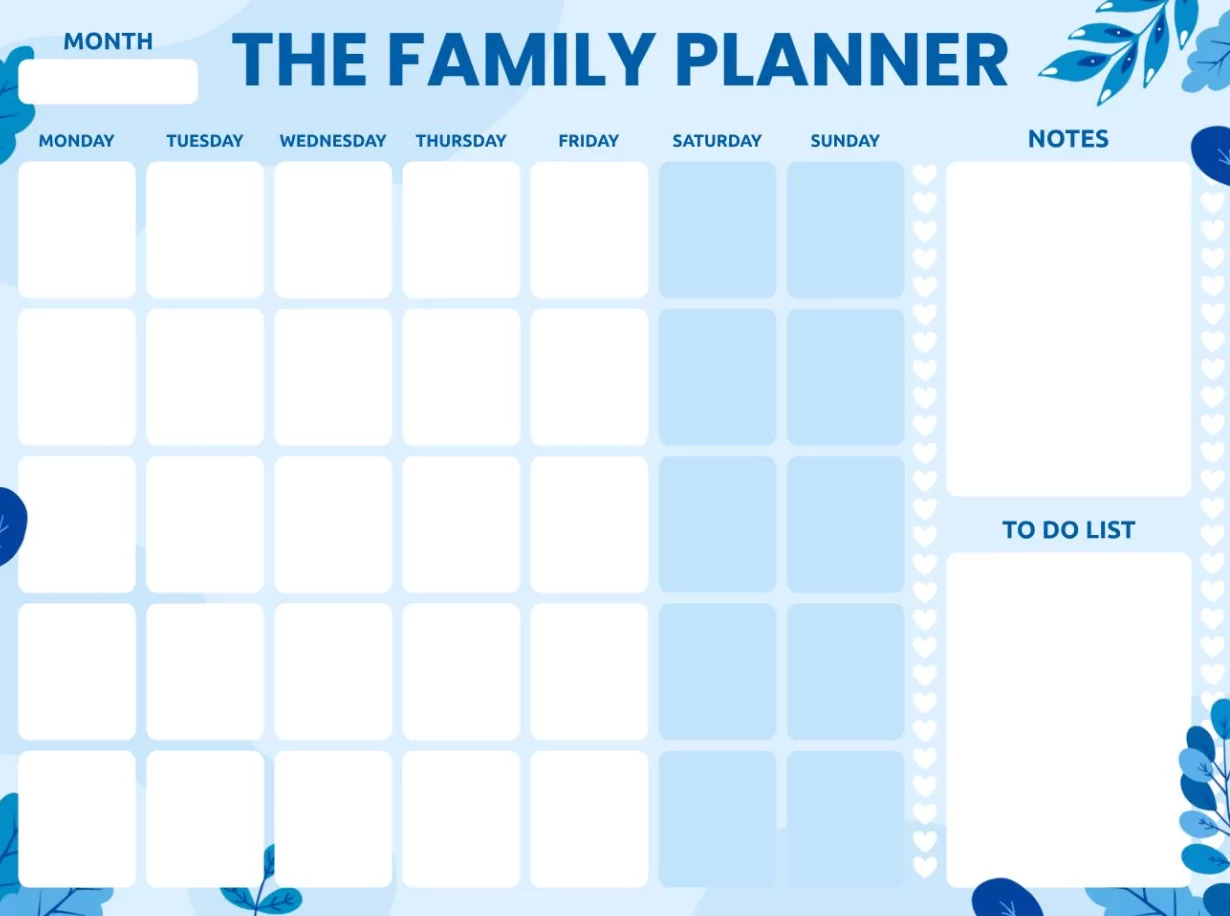
- Create 4 shared calendars: (1) School & childcare, (2) Activities & sports, (3) Household & errands, (4) Parents’ work & travel.
- Use consistent colors: One color per calendar so month view is readable at a glance.
- Standardize event titles: Start with the child’s name or category (e.g., “Alya – Soccer Practice” or “House – Groceries”).
- Make event details non-optional: Every event must include location, start/end time, and a short note: “Driver,” “What to bring,” and “Drop-off/pick-up rules.”
- Add two reminders by default: 24 hours before (prep) and 60 minutes before (leave time), adjusting for traffic and distance.
The Practical Example: A Weekly Family Coordination Workflow
This example works because it combines one weekly planning meeting with lightweight daily check-ins, so the calendar stays accurate without becoming a burden.
Sunday “Family Planning Huddle” (20 Minutes)
- Step 1: Open the shared calendar in week view on one screen everyone can see.
- Step 2: Add all fixed commitments first: school schedules, practices, lessons, birthday parties, work travel.
- Step 3: Assign ownership in the event notes: “Driver: Mom” / “Driver: Dad” (or “Carpool: Rina’s parent”).
- Step 4: Add “prep blocks” before key events (15–30 minutes): packing gear, snacks, homework check, uniforms.
- Step 5: Resolve conflicts immediately: if two events overlap, decide who covers what and update the event notes.
Daily 2-Minute Check (Morning or Dinner)
- Open “Today” view and confirm: pickup times, location changes, and anything to bring.
- If something changes (practice canceled, meeting runs late), update the calendar event—do not rely on chat messages alone.
Example Week (What It Looks Like in the Calendar)
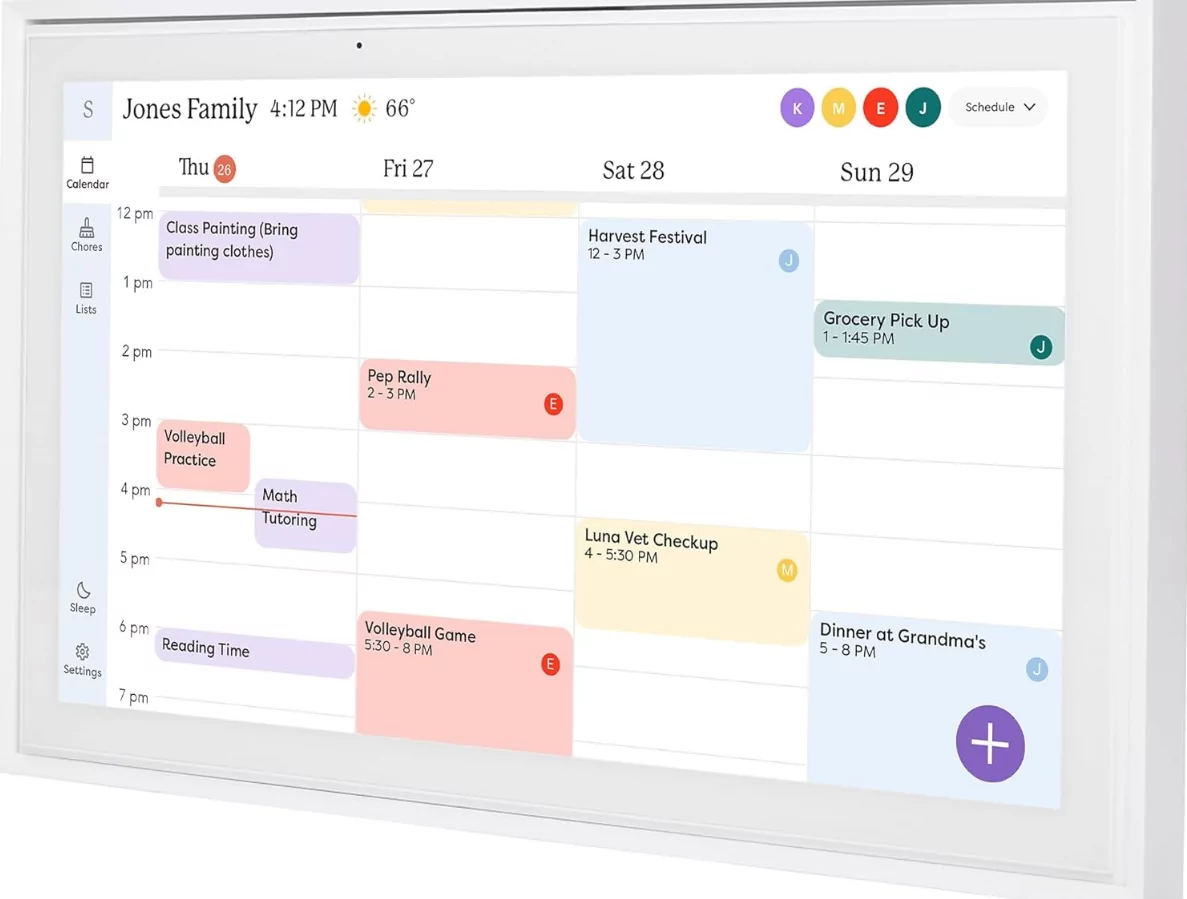
- Monday: “Alya – Piano Lesson (17:00–18:00)” Location: Studio address; Notes: Driver Dad, bring book 2, leave 16:30; Reminders: 24h + 60m.
- Tuesday: “House – Grocery Run (19:30–20:30)” Notes: list link + budget cap; Reminder: 30m.
- Wednesday: “Rafi – Soccer Practice (16:00–17:30)” Notes: Driver Mom, cleats/water, pickup gate B; Add prep block “Pack gear (15:30–15:45).”
- Thursday: “Parents – Admin Night (20:30–21:00)” Agenda: pay bills, school forms, plan weekend; This protects the time instead of hoping it happens.
- Friday: “Family – Movie Night (19:00–21:00)” Notes: snack plan; This prevents social invites from accidentally taking over.
- Saturday: “Kids – Birthday Party (14:00–16:00)” Notes: gift checklist, RSVP status, drop-off or stay.
Optimization Rules That Keep It Working Long-Term
- One source of truth: If it’s real, it goes on the calendar; if it’s not on the calendar, it’s not guaranteed.
- Default durations: Set realistic event lengths (including travel) so your calendar reflects real life.
- Protect buffers: Add 10–20 minute buffers between events to absorb delays and avoid cascading lateness.
- Use recurring events: School pickups, weekly practices, and chore blocks should repeat automatically to reduce manual work. [web:3]
- Keep titles searchable: Use the same format every time so you can quickly find “Dentist,” “Practice,” or a child’s name.
Common Mistakes (and Quick Fixes)
- Mistake: Too many calendars and colors. Fix: Keep it to 3–5 max and merge anything rarely used.
- Mistake: Missing logistics (driver, address, what to bring). Fix: Make a rule: no event is “done” until the notes are complete.
- Mistake: Changes shared only via chat. Fix: Update the event first, then message: “Calendar updated.”
- Mistake: Overbooking weekdays. Fix: Add one recurring “No Plans” night to recover and reset.
